

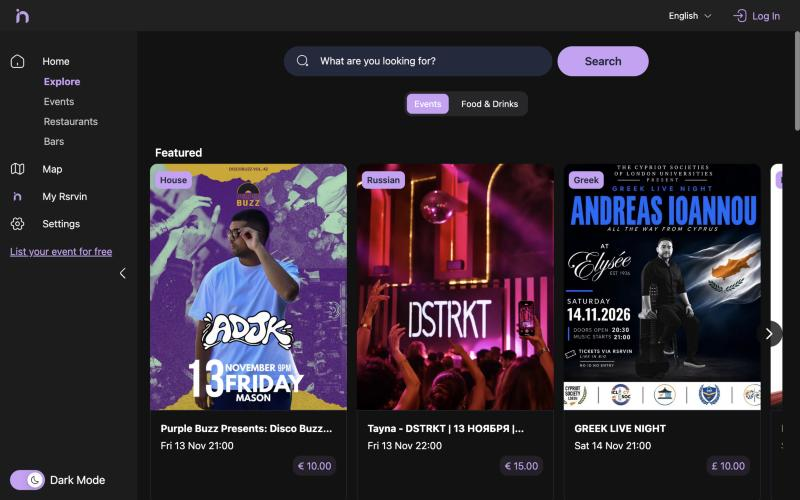
Step 1: Open RSRVIN and Click Log In
Go to rsrvin.com. In the top-right corner of the page, next to the language selector, you'll see Log In. Click it.
Step 2: Choose Google or Apple
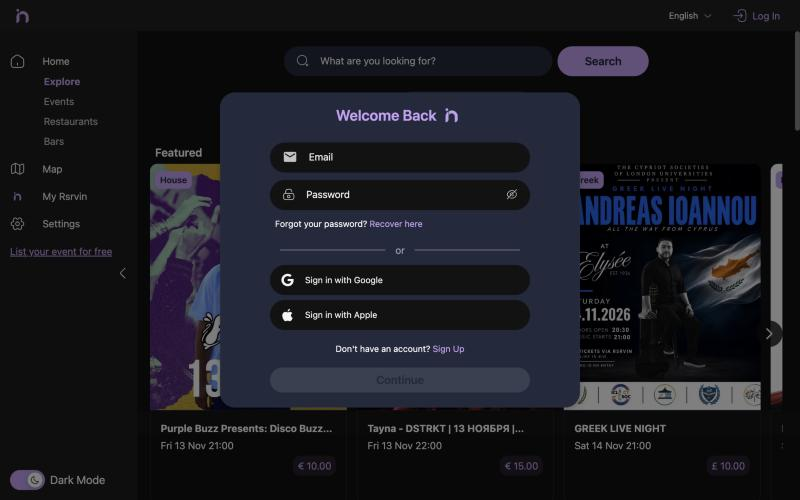
The Welcome Back window opens. At the top you'll find the classic email and password fields, but you don't need them. Just below the "or" divider there are two buttons:
- Sign in with Google
- Sign in with Apple
Click the one that matches the account you want to use.
Step 3: Confirm Your Identity
You'll now be taken to Google's or Apple's own secure sign-in page. Check the address bar: it should read accounts.google.com or appleid.apple.com.
Signing in with Google
Google shows a Sign in page that says "to continue to rsrvin.com". Enter the email or phone number of your Google account, click Next, and then enter your password (or approve the sign-in on your phone, if you use 2-step verification).
If you're already signed in to Google in your browser, you'll skip the typing: Google simply asks you to pick the account you want to use.
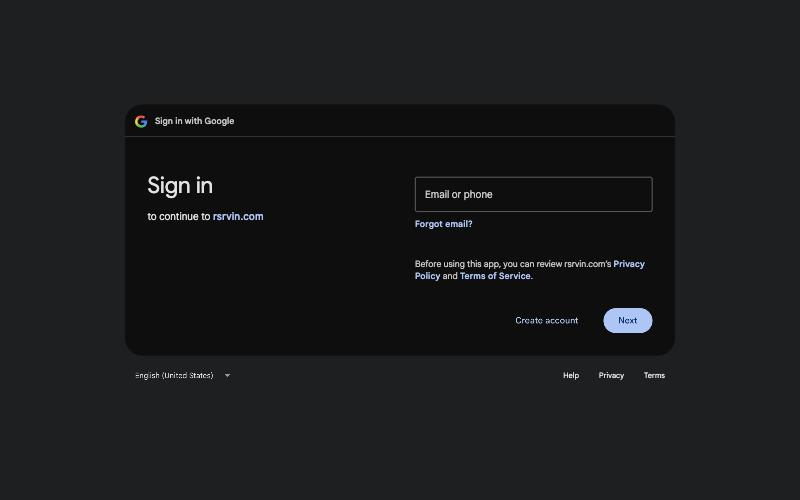
The first time you do this, Google may ask you to confirm that you're happy to share your name, email address and profile picture with rsrvin.com. Click Continue to allow it.
Signing in with Apple
Apple shows its Apple Account sign-in page. Enter your Apple Account email or phone number and click Continue, then follow the prompts. If you have an iPhone or iPad running iOS 17 or later, you can tap Sign in with Passkey instead and confirm with Face ID or Touch ID.
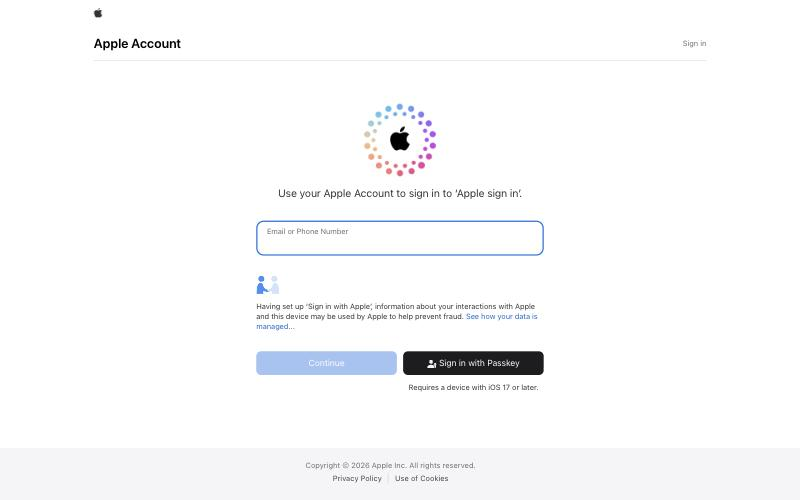
The first time, Apple asks whether you want to share your real email address or use Hide My Email. With Hide My Email, Apple creates a private relay address that forwards to your inbox, so your real address stays private. Either option works with RSRVIN.
Step 4: You're In
As soon as Google or Apple confirms it's you, you're sent straight back to RSRVIN, already logged in. From here you can browse events, restaurants and bars, book tickets, and find everything you've reserved under My Rsrvin in the left-hand menu.
Next time, just click Log In and the same button you used today. That's it.
Frequently Asked Questions
- Does RSRVIN see my Google or Apple password? No. You enter your password only on Google's or Apple's page. RSRVIN receives confirmation that it's you, along with basic profile details such as your name and email.
- Do I need to create an RSRVIN password as well? No. Your Google or Apple account is all you need to log in.
- I chose Hide My Email with Apple. Will I still get my tickets? Yes. Apple forwards every email sent to your private relay address to your real inbox.
- I'm not sure which method I used last time. What should I do? Try the button you think you used. If you originally signed up with an email and password, use those fields instead, or click Recover here to reset your password.
- Can I stop RSRVIN from using my Google or Apple account? Yes. You can remove RSRVIN from the connected apps list in your Google Account or Apple Account settings at any time.